downscale
Image downscaler for 2D game assets — shrinks in linear light, so thin detail keeps its brightness.
downscale makes images smaller — a whole folder at a time, to any size you need. It differs from other resizers in one thing: it does the arithmetic in the right place, so thin bright detail keeps its brightness instead of fading. Grass, hair, wires, sparks, 1px lines — the things that go pale and thin when you shrink them anywhere else. It runs on Windows, needs ImageMagick, and never touches your originals.
What it costs you to get this wrong
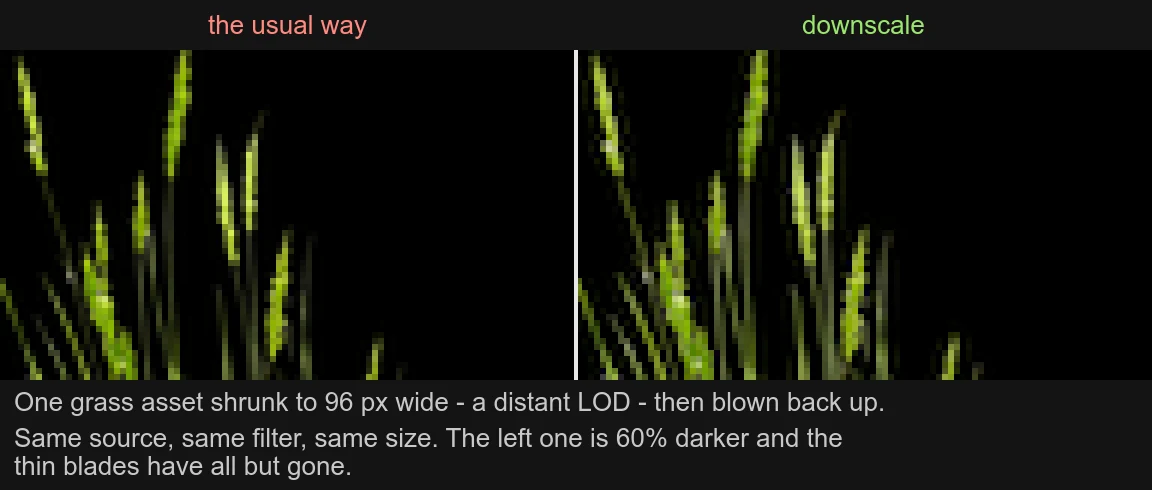
One grass asset, shrunk to 96 px wide — a distant LOD — then blown back up so you can see the pixels. Same source, same filter, same target size. The left one is 60% darker, and most of the thin blades have simply gone.
This happens every time you build a thumbnail, a mipmap, an icon or a LOD.
Nobody notices, because there is nothing to compare it against. You just end up with distant foliage that looks murkier than the close-up and no idea why.
Why it happens
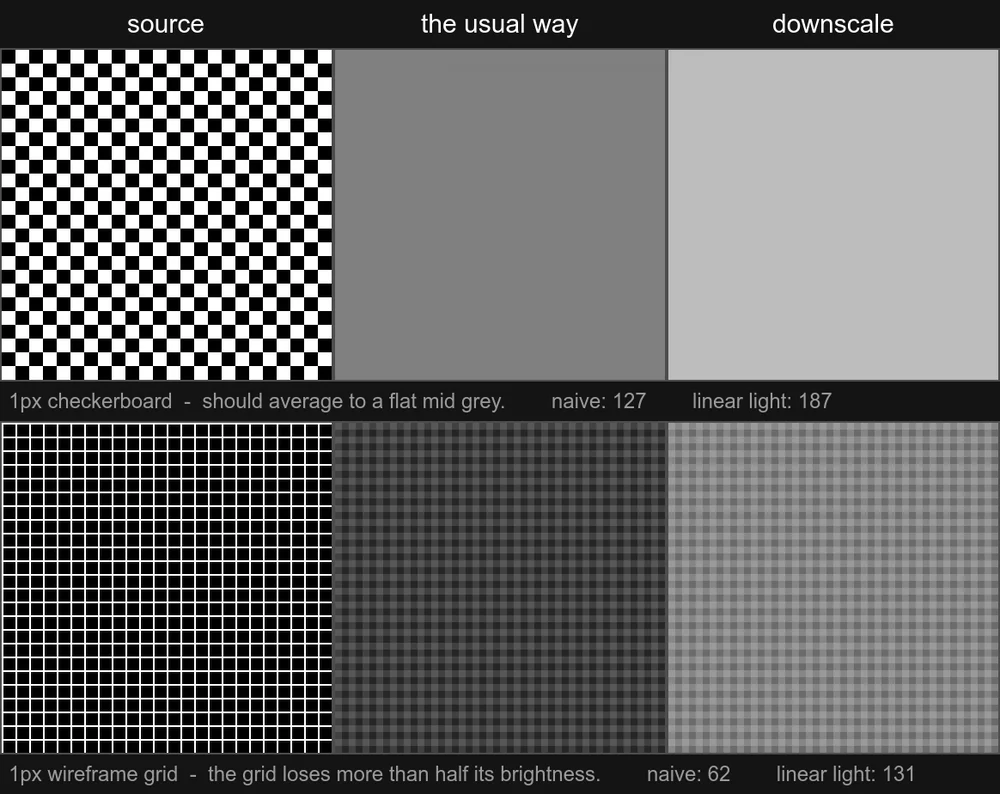
Shrinking an image means averaging neighbouring pixels together. The catch is that the numbers in an image file are not amounts of light — they are bent through a gamma curve so that dark tones get more of the available range. Averaging those numbers directly is like averaging decibels instead of loudness. The answer comes out wrong, and it comes out dark.
The checkerboard is the textbook proof. Half black, half white, so shrinking it must give a flat mid grey. Do it the usual way and you get 127. Do the averaging in actual light and you get 187 — and 187 is the correct answer.
The fix is to undo the curve first, average, then put it back:
sRGB -> linear light -> resize -> sRGBThat is all this tool does. It is not clever, it is just in the right order.
When it matters, and when it does not
The error is not uniform. It grows with the contrast in the fine detail, and with how far you are shrinking.
| what you are shrinking | how much darker the usual way is |
|---|---|
| 1px grid or checkerboard | 25–30% |
| a foliage asset down to 128 px | 21% |
| the same asset down to 512 px | under 1% |
| an ordinary photograph | 1–3% |
| a screenshot with small text | under 1% |
On an ordinary photograph the difference is invisible. It pays off on thin, bright structure against a dark background, and on big reductions: game assets and their LODs, line art, wireframes, pixel art, star fields, UI with hairline borders, anything with hair or foliage in it.
Install
You need ImageMagick and PowerShell 7.
winget install ImageMagick.ImageMagick
git clone https://github.com/ondrejbasegit/downscale.git
Then either call the script directly, or add an alias to your profile:
function downscale { & "C:\path\to\downscale\downscale.ps1" @args }PowerShell 7 runs on macOS and Linux too, and nothing in the script is Windows-specific — but that is untested, so treat it as a Windows tool until somebody says otherwise.
Use
One number says how small, and which side of 1 it falls on says what it means.
downscale 1024 .\assets          # longest side to 1024 px, sub-folders included
downscale 0.5 render.png         # one image, half size
downscale 2048 .\assets -WhatIf  # show the plan, write nothing
downscale # the guide, nothing runs| you write | you get | the file is called |
|---|---|---|
0.5 |
half size | render_x05.png |
0.25 |
quarter size | render_x025.png |
1024 |
longest side 1024 px | render_1024px.png |
2048 |
longest side 2048 px | render_2048px.png |
Reads .png, .jpg and .webp, and writes the same format back, next to the
original. Your originals are never modified. Files it wrote earlier are
skipped, so running it twice on a folder is harmless — and images that are
already small enough are left alone rather than blown up to meet the number.
What it will not do
It will not enlarge. Any number from 1 up is read as a pixel ceiling, so there is no way to ask for it. Enlarging is a different problem and a Lanczos filter is the wrong tool for it.
It will not stretch. There is no separate width and height, so the aspect
ratio cannot be broken. If you need that, use magick -resize 800x600!.
It will not choose a quality for you. Lossy formats are written at quality 92. For tuning compression, use ImageMagick directly.
Licence
MIT — see LICENSE.
The pixel work is done by ImageMagick, which you install yourself. It is not bundled here, so its licence puts no obligation on you; it is an Apache-2.0 derivative and permits commercial use.
The checkerboard demonstration comes from Eric Brasseur’s Gamma error in picture scaling, the fullest write-up of this problem.